
Guide to Receiving Payments and Managing Your Payment Portal
1. Email Notification for Payment 0:09
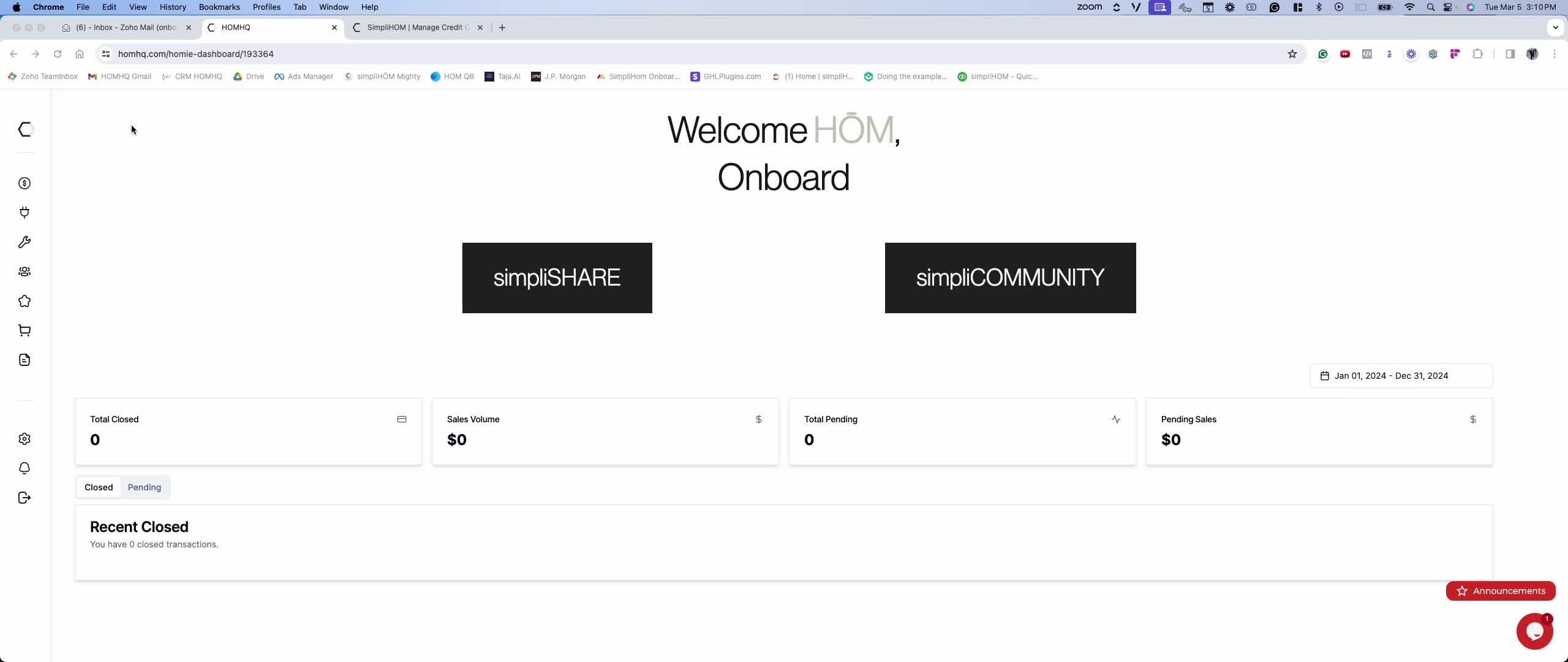
Expect an email from Home Nashville for payment notifications.
The email will come from 'do not reply JP@jpmorgan.com'.
2. Registering for Payment 0:30
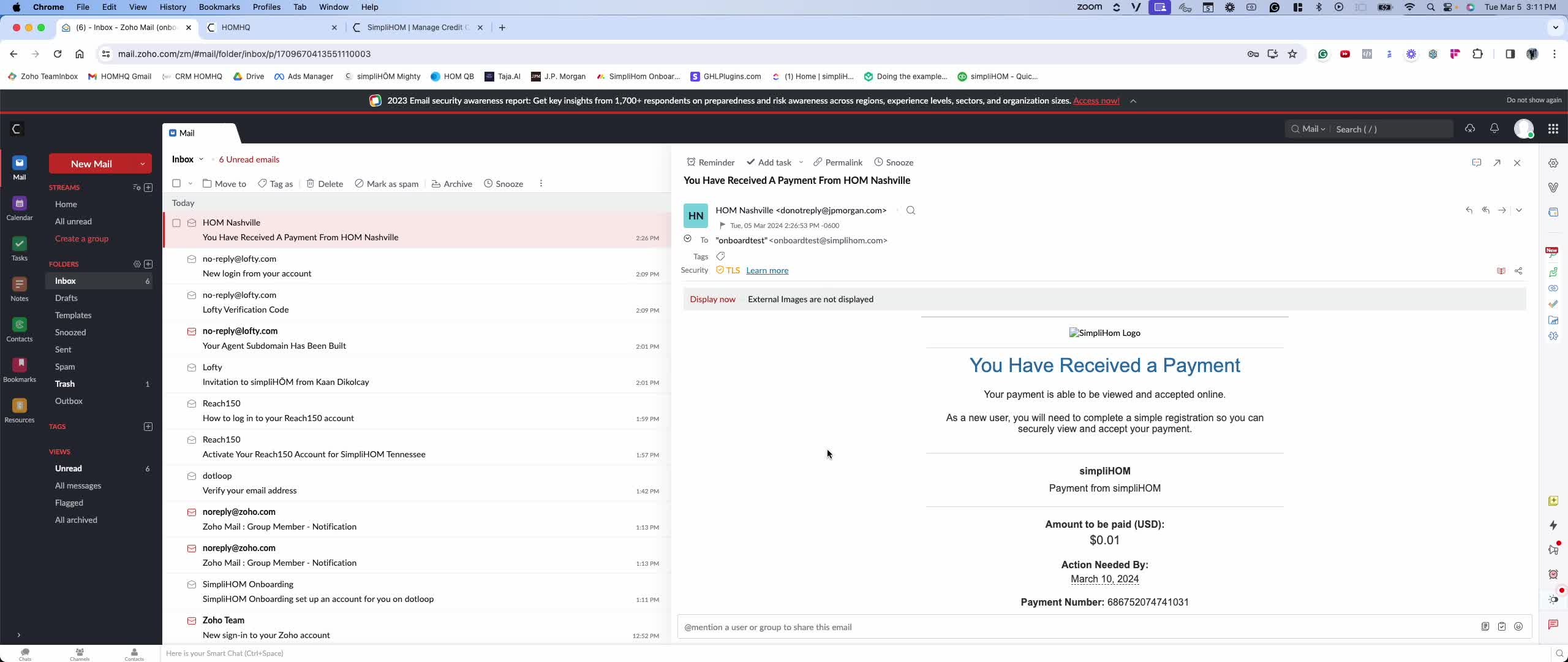
You must register and accept payment upon receiving the email.
Note that revshare payments come from a different bank account.
3. Accessing Payment Details 1:02
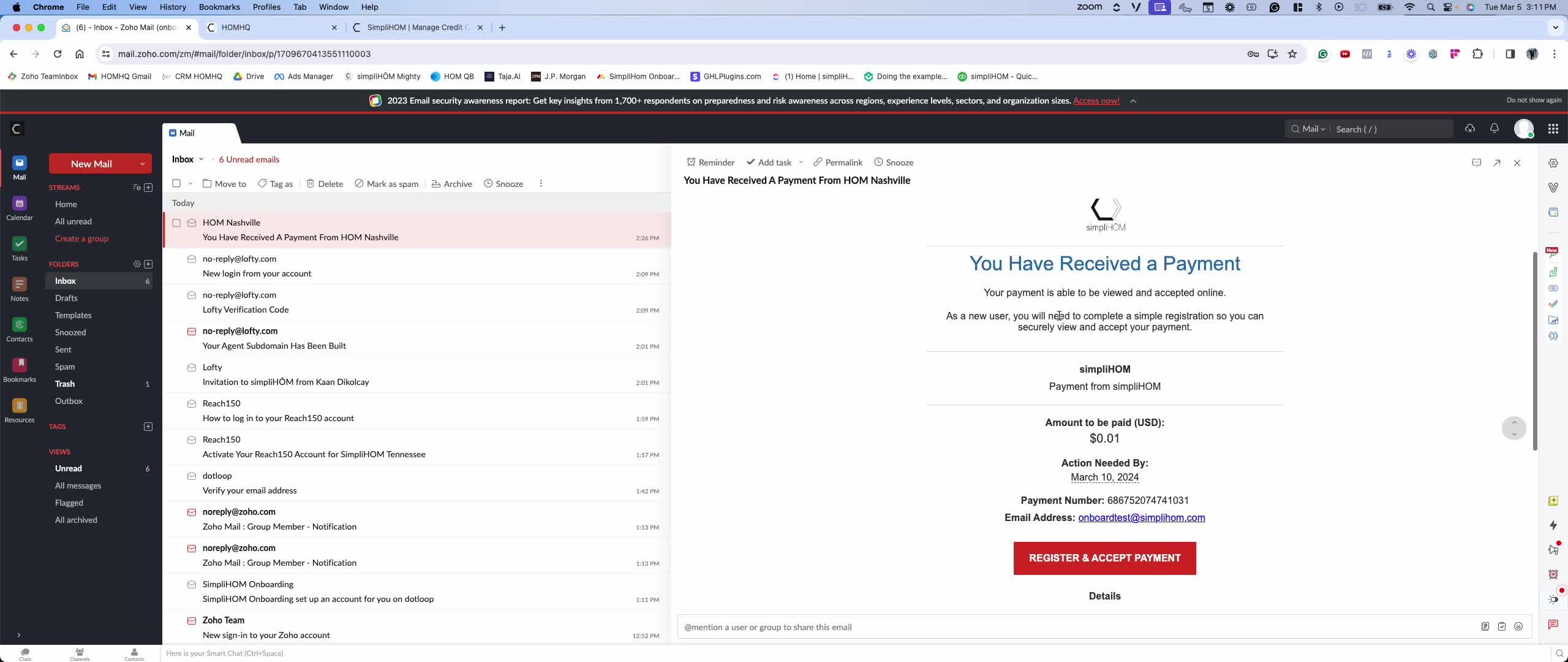
The email will include the street address of the property related to your commission.
You can view payment details on your dashboard.
4. Steps to Register and Accept Payment 1:20
Add your phone number for optional two-step verification.
Create a required password to proceed.
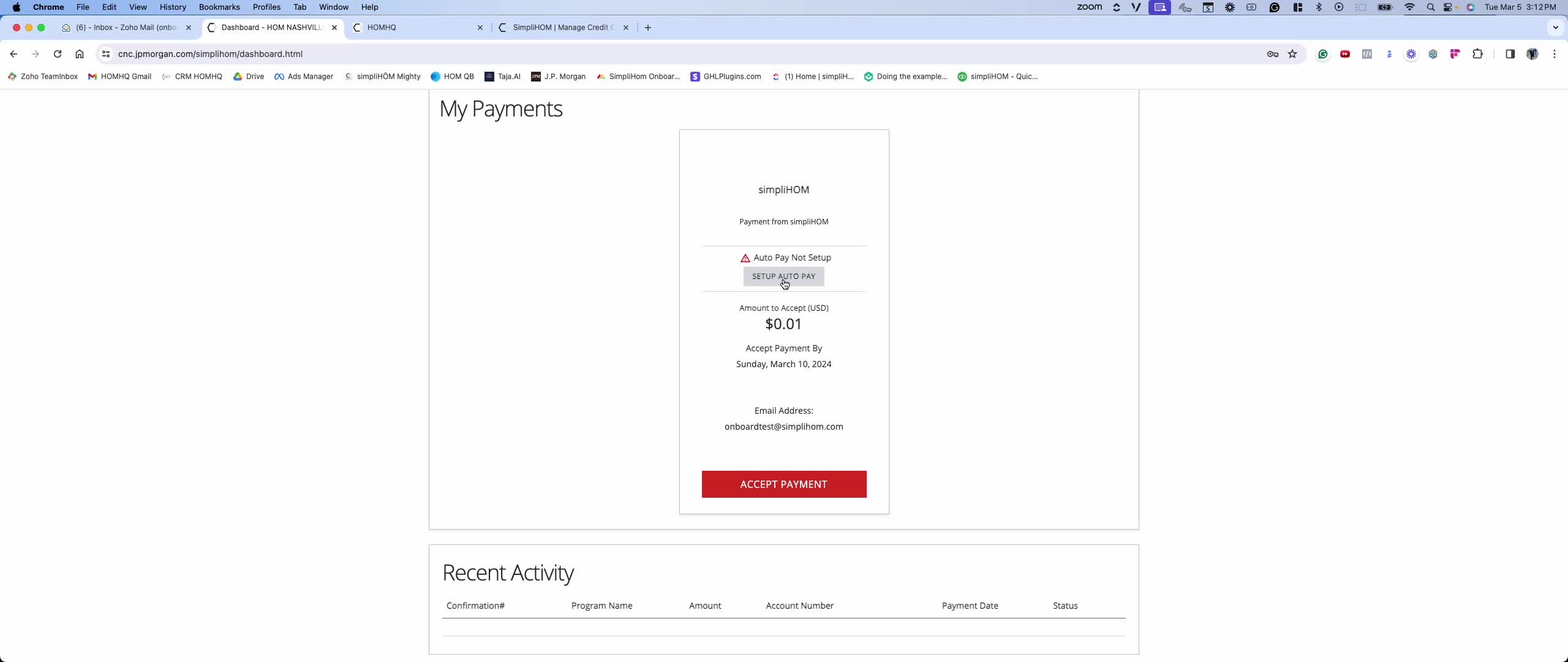
5. Setting Up Auto Pay 1:44
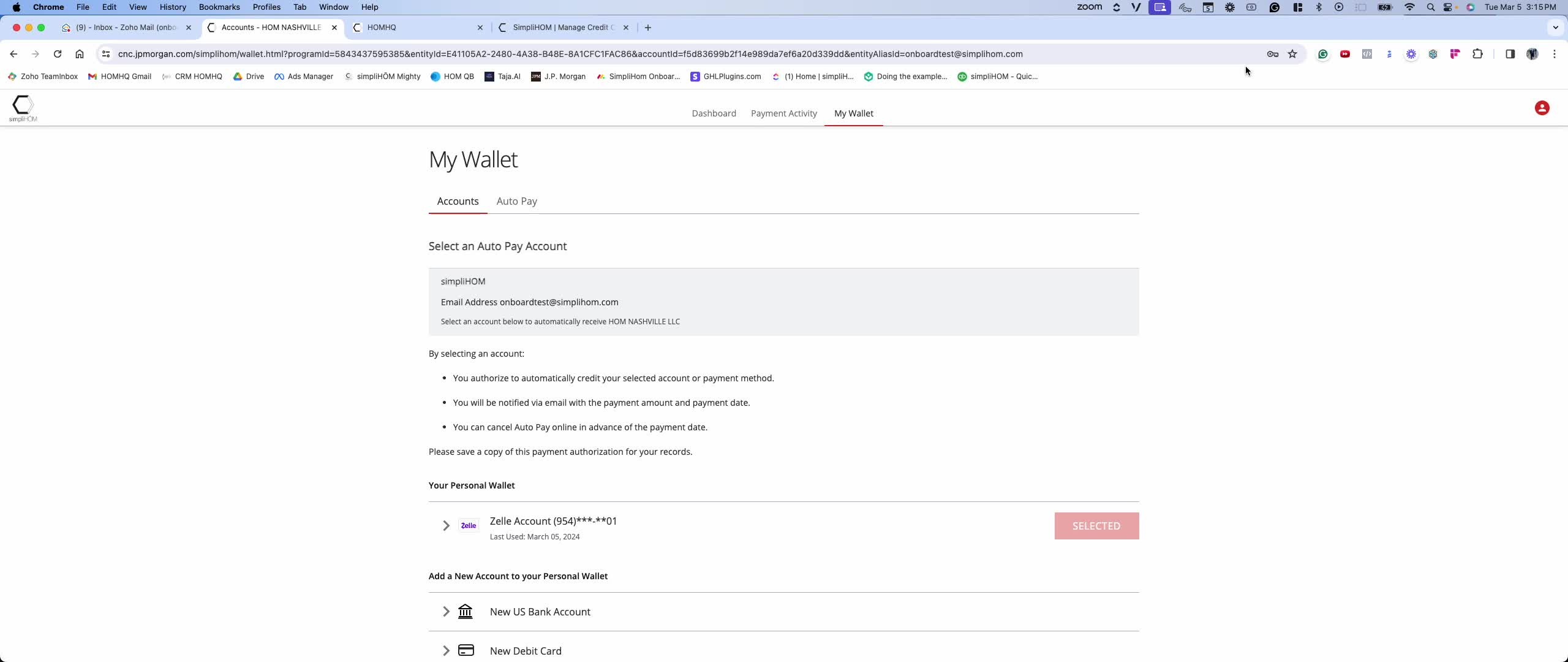
You can choose to set up auto pay or accept the payment manually.
Auto pay simplifies future transactions.
6. Payment Options Available 2:06
ACH Payments:
Instant payments if your bank allows real-time payments.
Same-day payments if your bank allows same-day ACH.
Normal ACH takes 3-5 business days if neither option is available.
Debit Card Payments:
Use Visa or Mastercard debit/prepaid cards for instant payments.
Zelle Payments:
Recommended for its security and no need to input bank info.
Ensure your bank accepts Zelle.
7. Completing the Payment Setup 3:07
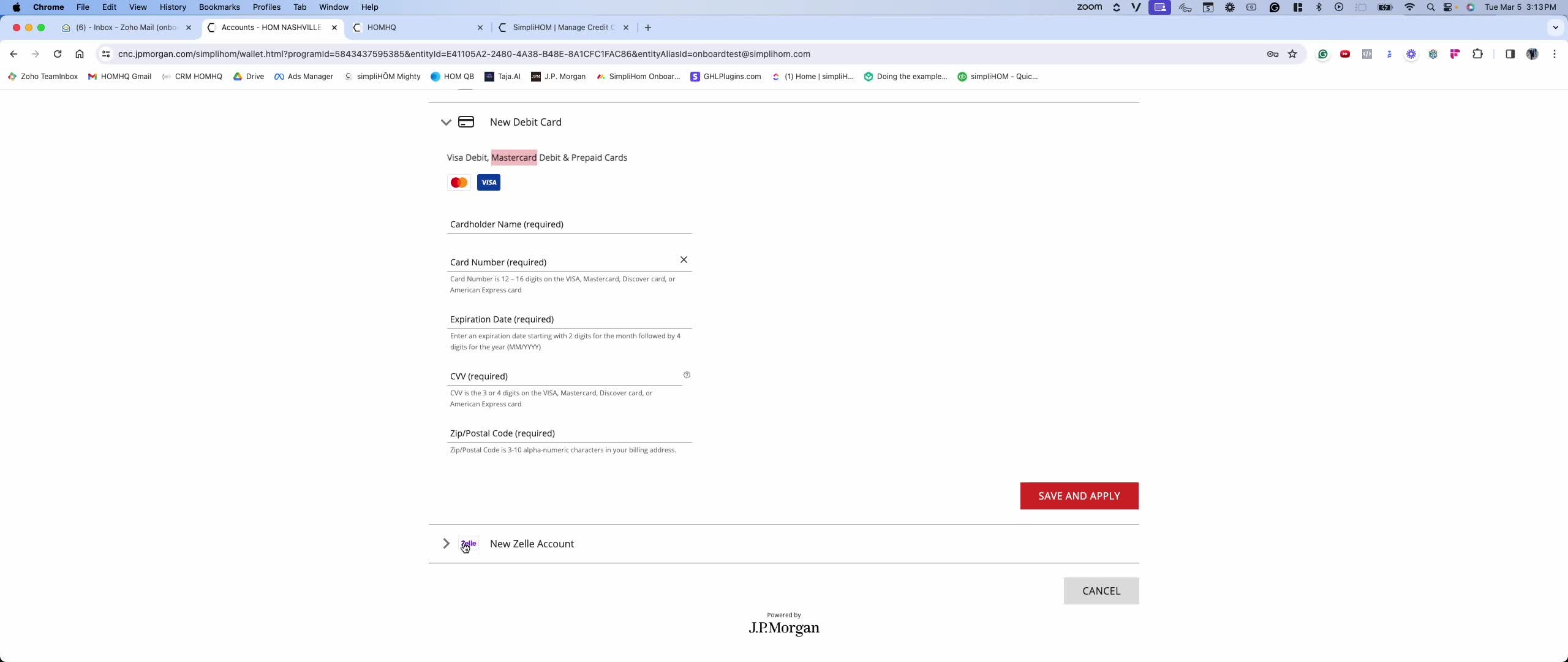
Save and apply your payment method.
Confirm that your auto pay is set up.
8. Managing Your Payment Portal 3:42
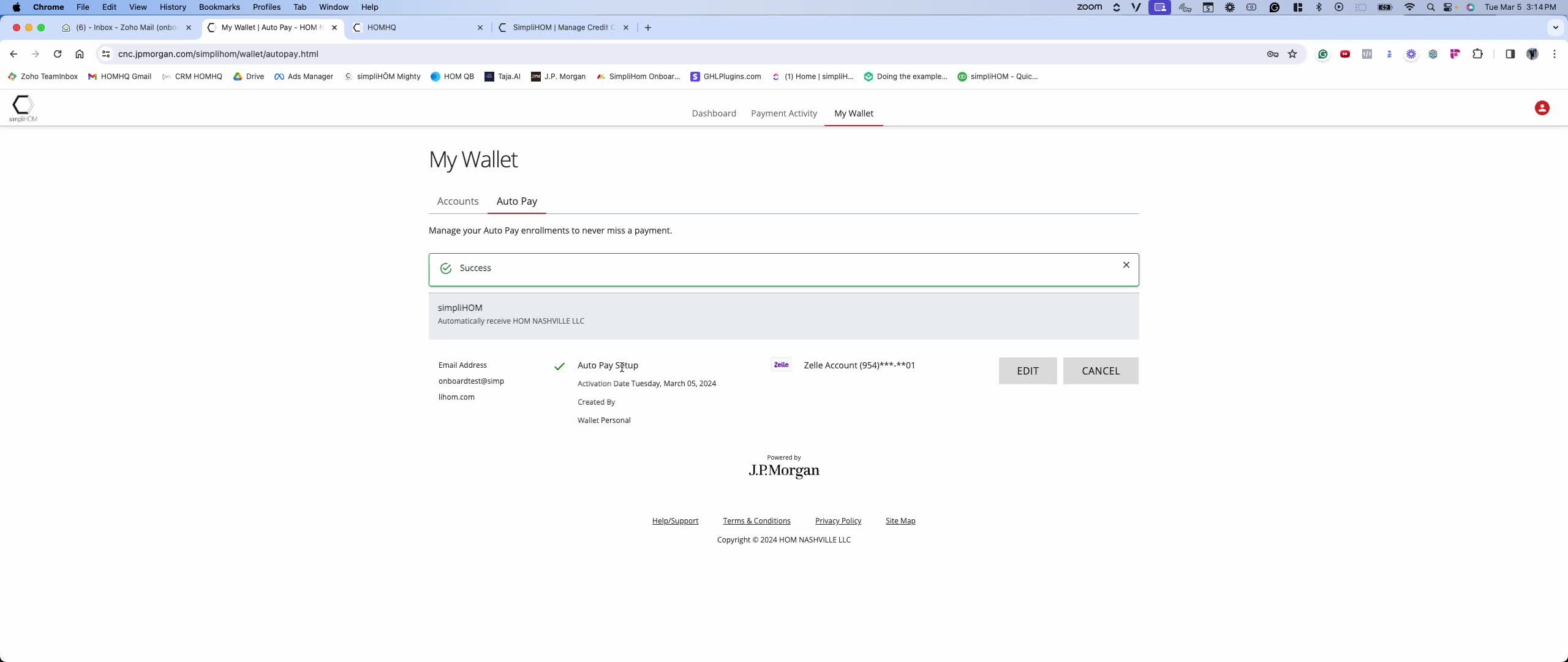
Check your dashboard for payment status and history.
View outstanding payments and payment activity.
9. Updating Payment Information 4:20
You can add or update debit card information or bank accounts.
Edit auto pay settings as needed.
10. Support for Payment Issues 4:43
For questions, contact onboarding at simplyhome.com.
Link to Loom
https://loom.com/share/2668c7f758874cf6ad8cc098df9d6aed