
If you’re unable to access your @simplihom.com Zoho Mail account, use this step-by-step guide to reset your password.
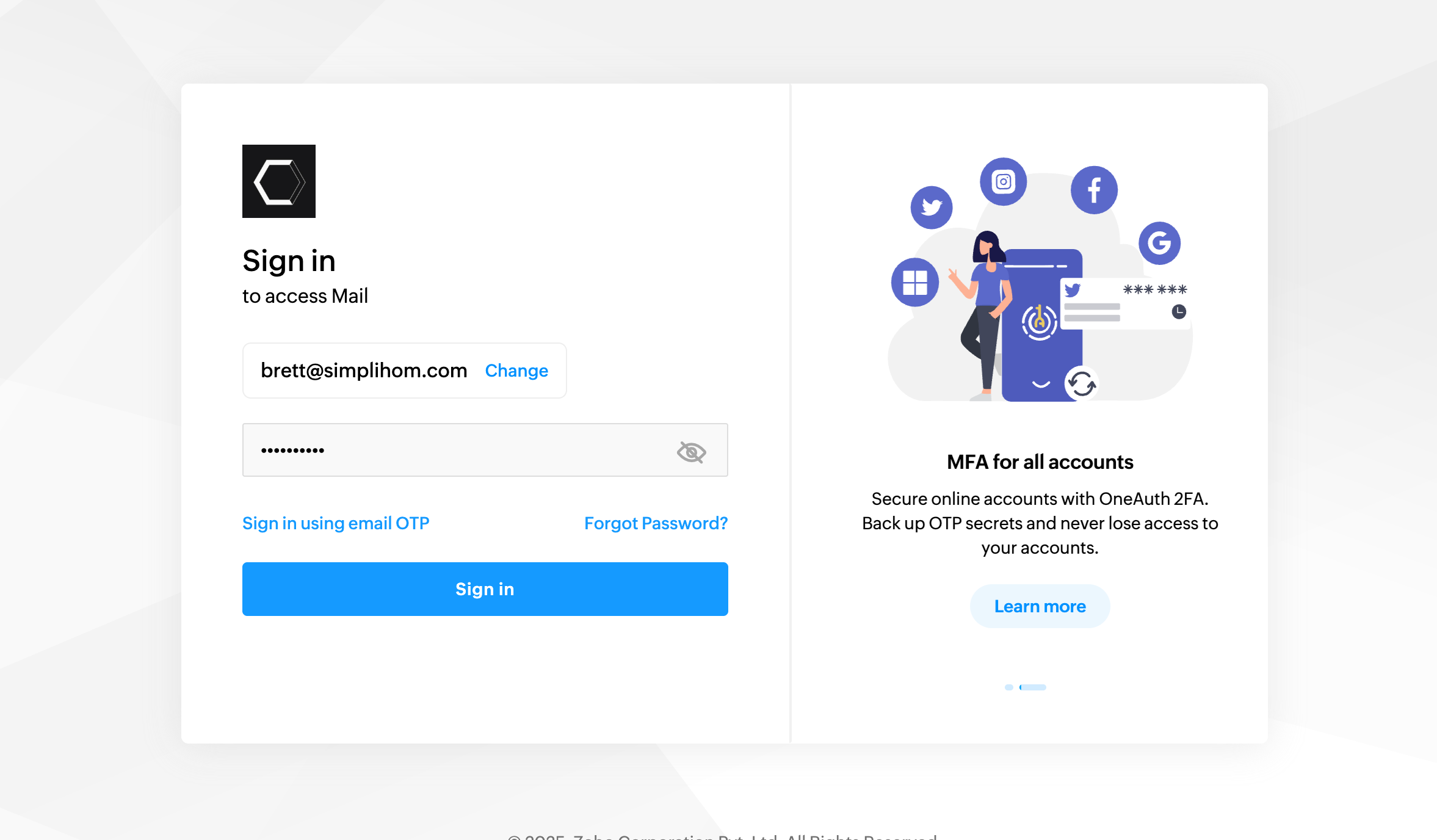
1. Start at the Zoho Mail Sign-In Screen
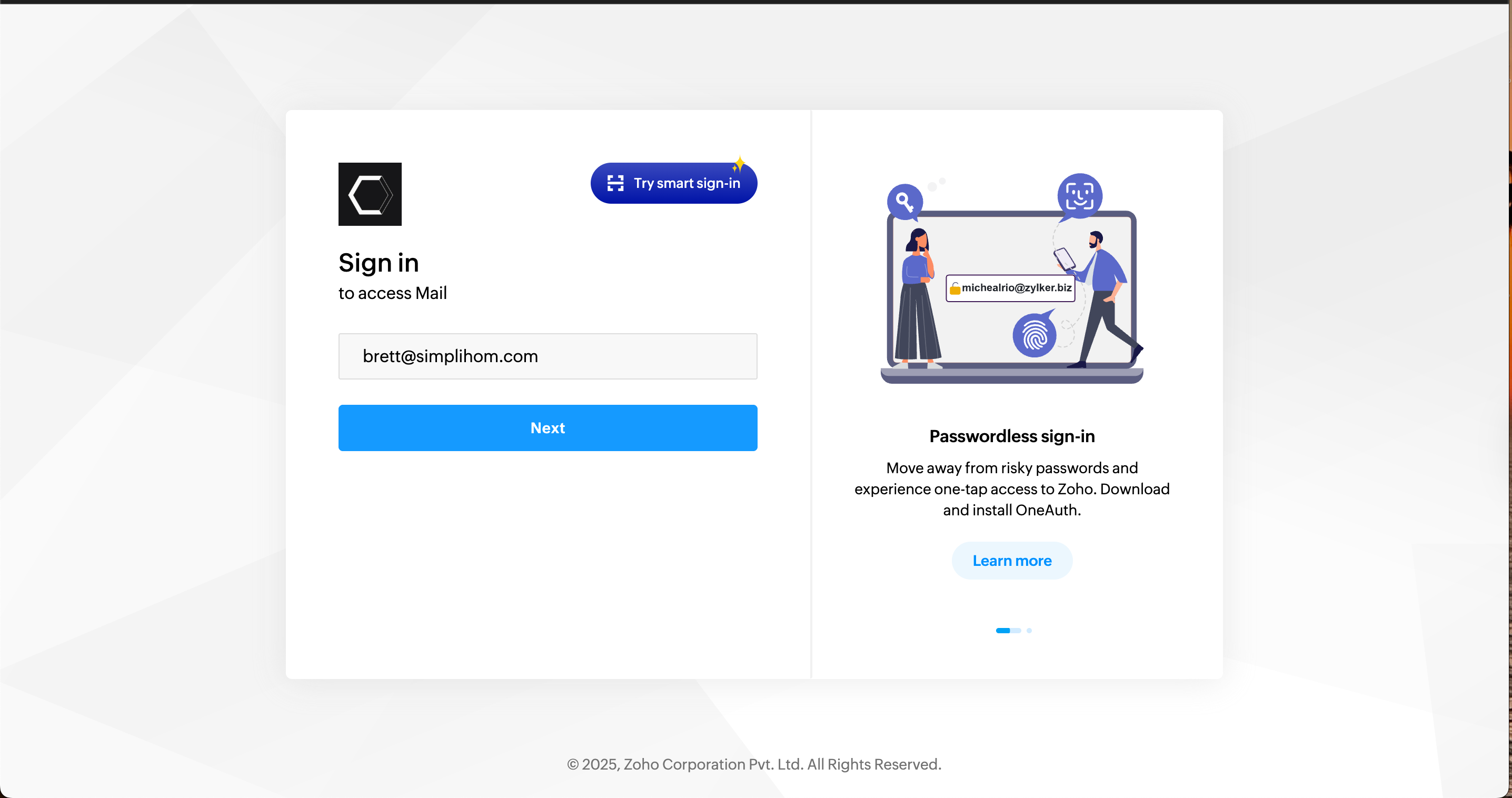
Go to mail.simplihom.com and enter your email address. Then click "Next."
2. Click “Forgot Password?”
When the password box appears, click Forgot Password?, since you’re unable to log in.
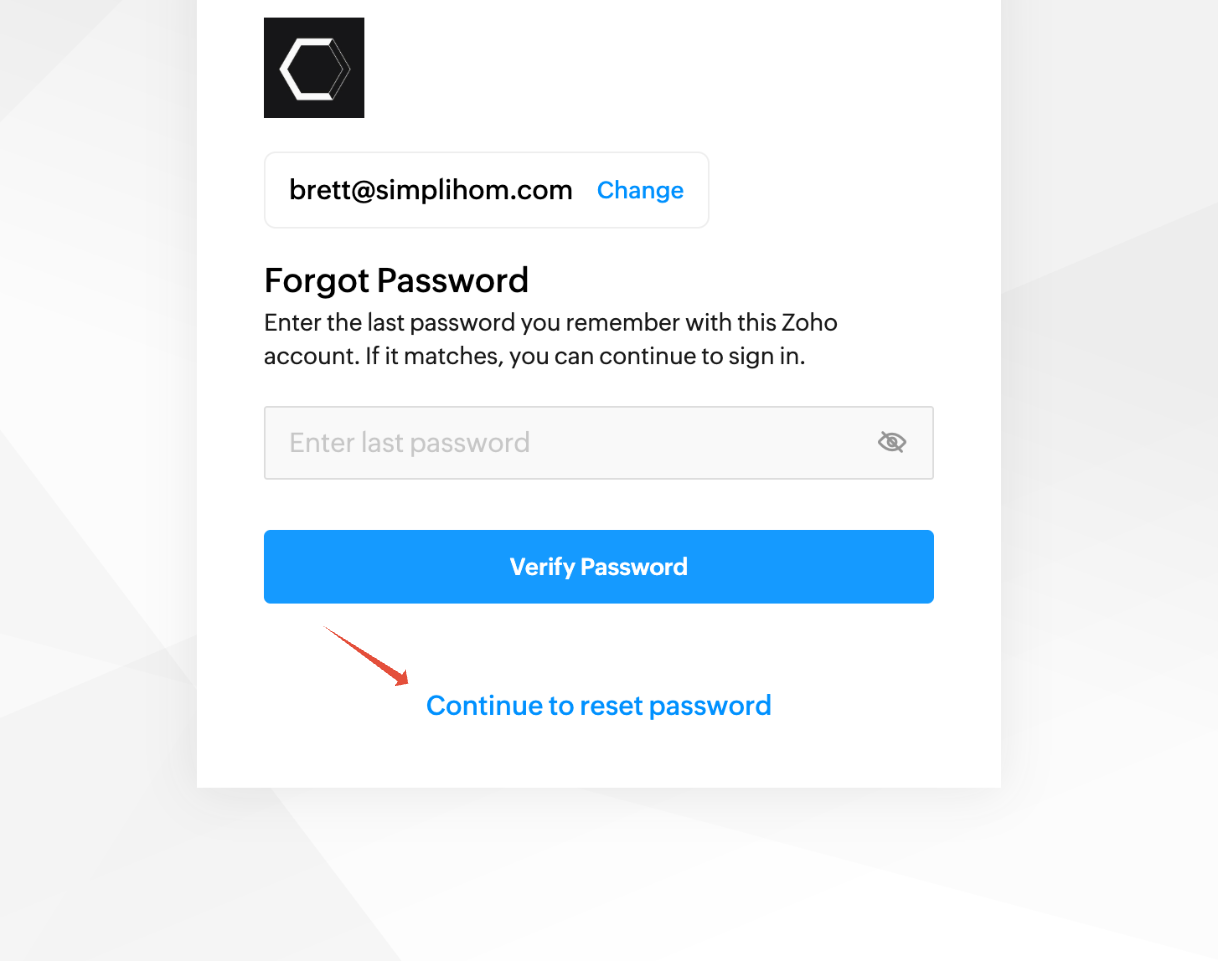
If the page asks for the last password you remember, simply skip it and select:
➡️ Continue to reset password
3. Choose a Verification Email
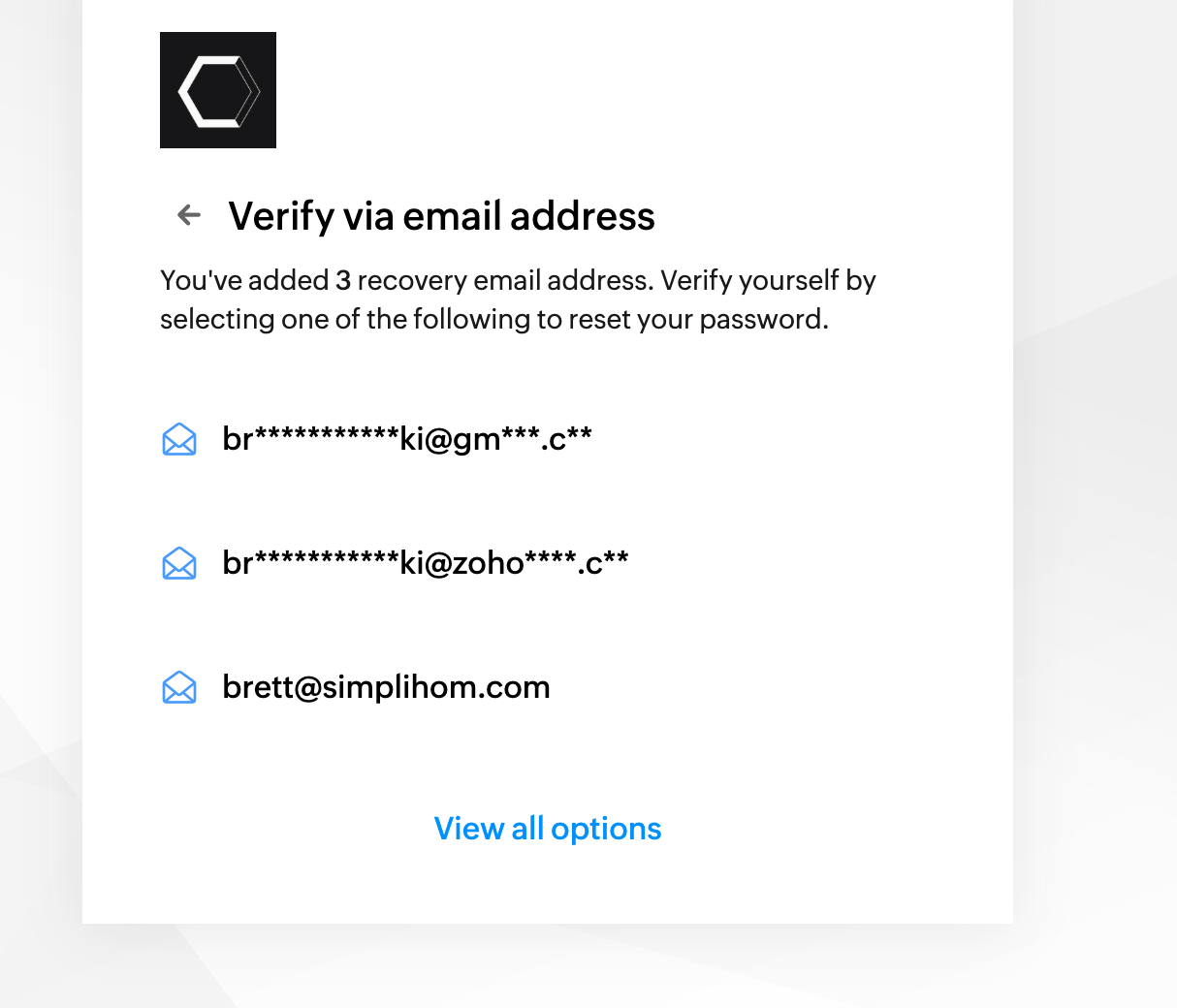
Zoho will show you the recovery email addresses connected to your account.
Select the one you want Zoho to send your verification code to.
Keep in mind you cannot select your @simplihom.com email since you cannot access it to retrieve a recovery token.
4. Complete the CAPTCHA
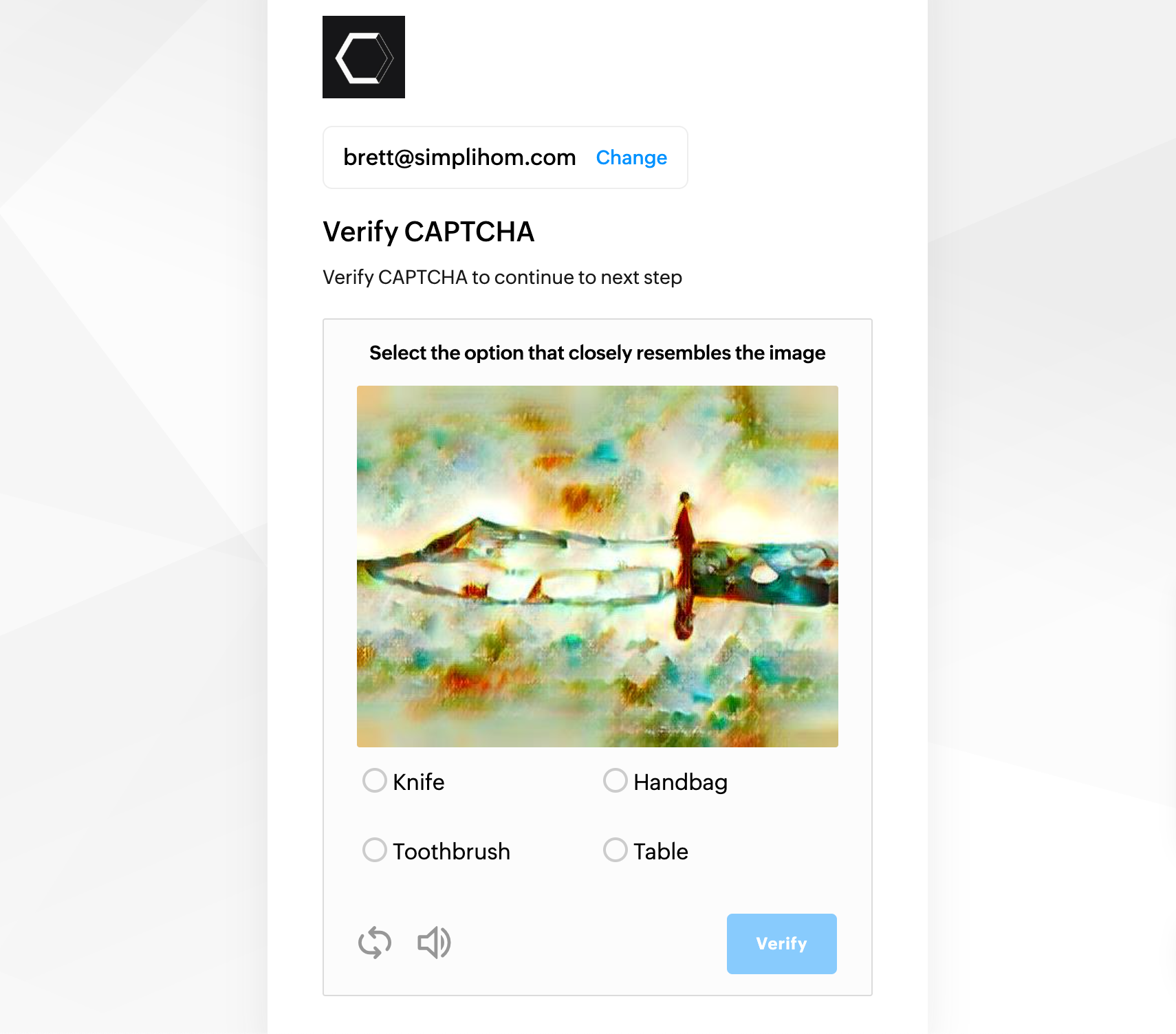
Zoho may show a CAPTCHA like the one below.
Choose the object that best matches the image and continue.
5. Check Your Email for the Verification Code
Zoho will send a code to the recovery email you selected.
Enter the code in the verification field.
If it doesn’t show up:
Check spam/junk
Search “Zoho”
Wait 2–3 minutes
6. Create Your New Password
After verification, Zoho will let you set a new password.
Choose a strong secure password and click Update Password.
7. Sign In With Your New Password
Return to the login page and sign in normally.
Still Need Help?
If you are unable to reset your password or your recovery email is inaccessible, contact Support:
? support@simplihom.com
Our team will help restore access quickly.